Back to Maintenance Manager for Manufacturing Main Menu
Manage Imports
The Manage Imports feature allows an Administrator to upload, review, and process data into the system.
To import a job
-
Go to the
 (Settings) > Manage Imports.
 -
Click the
 button at the upper right corner of the page.
 -
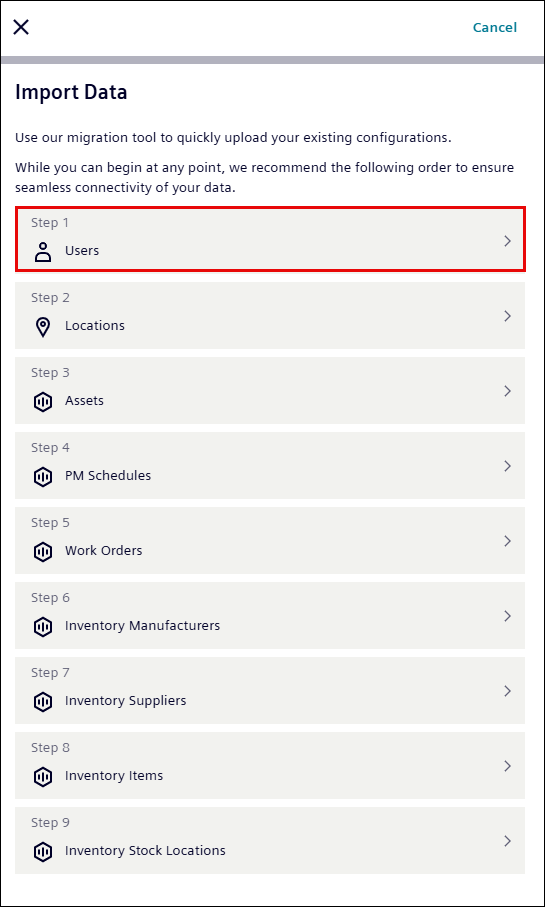
From the Domain list, select the type of data to import (for example, Inventory Manufacturers, Inventory Suppliers, Inventory Items, or Assets).
-
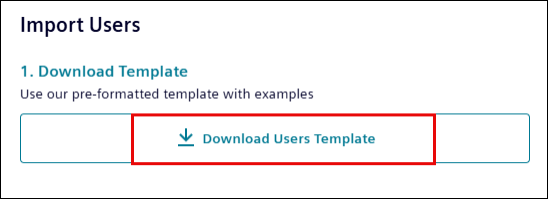
Click Download Users Template button to download the MS Excel sheet and fill the data into it.
-
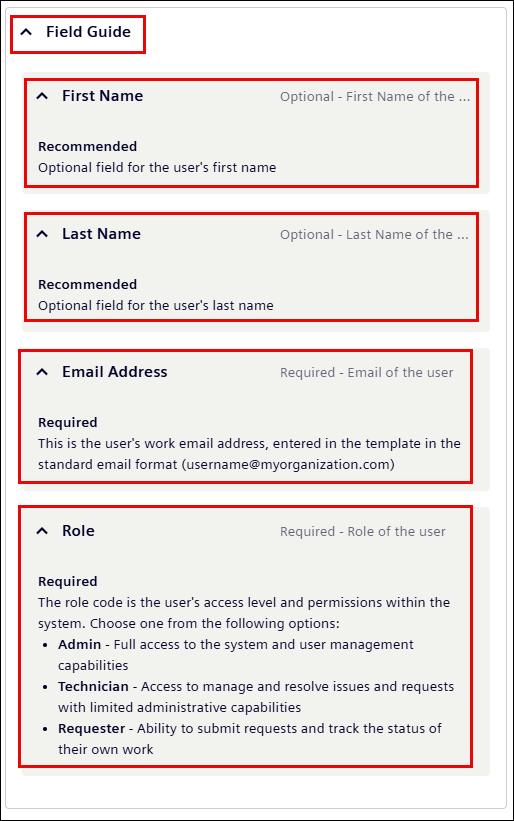
To understand required and optional fields:
-
In the Fill in your data section, open the Field guide list.
-
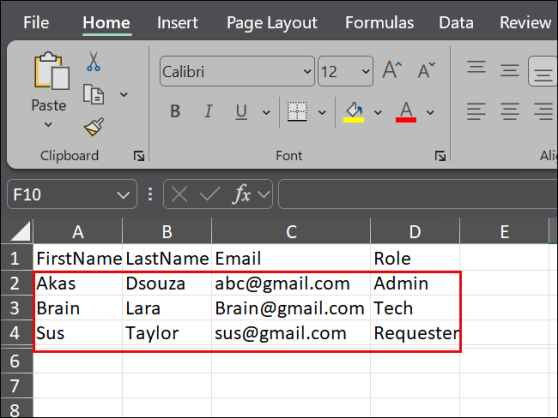
Open the downloaded template and enter the data based on the Field Guide list.
-
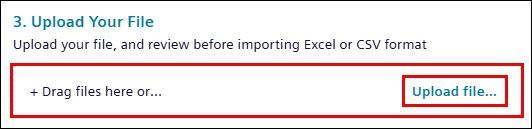
Upload the completed template by dragging the file into the upload area or selecting it from the folder.
-
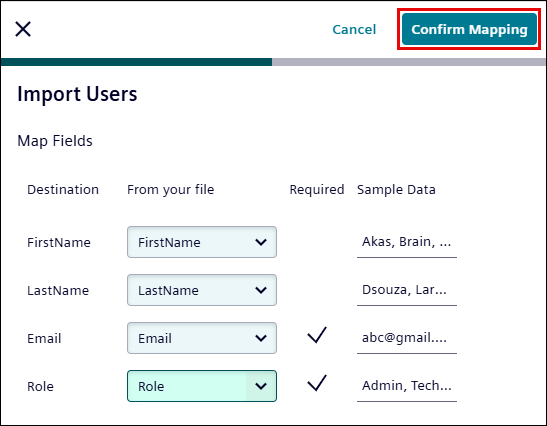
Review the field mapping, and then click Confirm mapping.
NOTE Make sure All Required fields are completed and contain valid values before confirming the mapping.
-
If the mapping contains error:
-
Click Download Error Report to review the issues.
-
Correct the data in the template.
-
Upload the updated file again.
-
After resolving all errors, click Continue with Import.
-
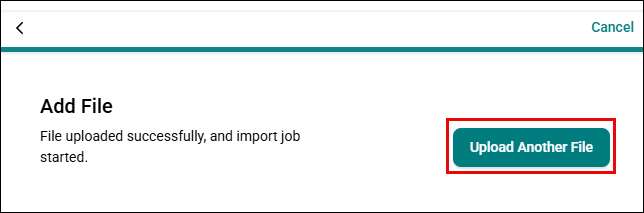
The system processes the file and adds data into the selected domain.

